How to Turn Your Outlook Calendar Into a Timesheet (Automatically)
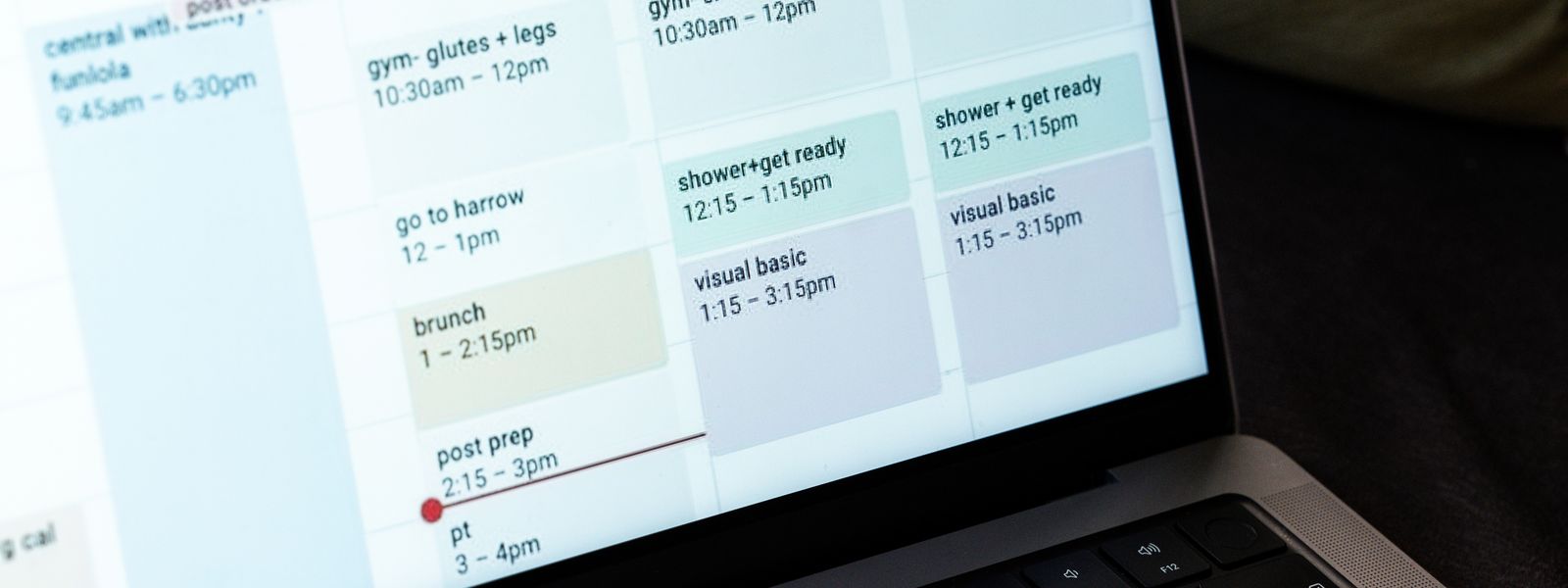
Here's a small unfairness of working life. You spend the week carefully keeping one record of your time, then spend Friday afternoon building a second one from memory. The first record is your Outlook calendar: every meeting, call and blocked-out working session, with real start and end times, written down while it happened. The second is your timesheet, and it's usually worse, because memory rounds things off and quietly loses the small stuff.
If your week already lives in Outlook, you shouldn't be typing it out twice. There are three realistic ways to stop, and they differ mostly in how much of the retyping they remove.
Your Outlook calendar is already a time log
Think about what a timesheet actually needs: what you worked on, when, and for how long. Now look at any Outlook meeting. It has a subject, a start time, an end time, often a category colour, and it was recorded at the moment it happened rather than reconstructed days later. That's not similar to a timesheet entry. That is a timesheet entry, minus the project tag and the billable flag.
For anyone whose work is meeting-shaped, consultants, contractors, account managers, anyone in professional services, the calendar routinely covers most of the working week. The recurring stand-up, the client workshops, the fortnightly review: they're all sitting there with accurate durations. The question isn't whether your Outlook calendar contains your timesheet. It's how much typing stands between the two.
The manual routes: copy-typing and exporting to Excel
Side-by-side copy-typing
The most common method, and the least defensible. Calendar on one monitor, timesheet on the other, and half an hour of transcription every Friday. It works, but you're paying a weekly tax to move data between two things you already own, and transcription is where the rounding creeps in: 50-minute meetings become "about an hour", the 25-minute call becomes nothing at all.
Exporting your Outlook calendar to Excel
One step better is getting the events out in bulk. Classic Outlook for Windows can export a calendar to CSV (File, then Open & Export, then Import/Export), and you can pick a date range on the way through. The new Outlook and Outlook on the web have dropped that exporter, so people bridge the gap with copy-paste into a spreadsheet or a Power Automate flow that writes events to Excel.
However you get the file, the same cleanup follows. Recurring meetings need expanding into their actual occurrences, durations need calculating from the start and end columns, cancelled and declined events need weeding out, and nothing maps a subject line to a client or a project, so that's a column you fill in by hand. It's a decent one-off trick for reconstructing a lost month. As a weekly system it's a spreadsheet chore bolted onto a copy-typing chore, and it still ends with you doing the arithmetic.
The automatic route: calendar import
The third way is to let timesheet software read the calendar itself. You sign in with your Microsoft account and grant read-only access to your calendar, and the tool pulls each week's events in as draft timesheet entries: subject, date and duration already filled in, straight from the source, with no retyping and no CSV surgery.
That turns the job on its head. Instead of building a timesheet from a blank grid, you're reviewing one that arrives mostly complete: tag each entry to a project, adjust anything that ran over, add whatever never made the calendar, and submit. The import your Outlook calendar into a timesheet screen in VibaCloud is built around exactly this loop, and the same approach exists in other tools, because it's simply the right shape for the problem: the calendar holds the when and how long, and you supply the which project and whether it bills.
Turning Outlook into a timesheet, step by step
Here's the whole journey in VibaCloud, from a connected account to a submitted week. It takes minutes, and most of them are the first-time setup.
1. Connect your Microsoft account
Sign in with the Microsoft account whose calendar holds your work, whether that's a Microsoft 365 work account or a personal Outlook one. You authenticate with Microsoft directly, so no password is ever shared, and the calendar access is read-only: nothing is ever written to, moved or deleted from your calendar. You can disconnect it again whenever you like.
2. Import your week
Pick the week and your Outlook events appear as a list, each with its subject, its day, its start and end times and its duration, with your Outlook category colours carried across so the list reads like the week you remember. One click saves the events and creates a matching draft timesheet line for each one.
3. Tag each event to a project
Each entry needs to know which client or project it belongs to, and this is the one genuinely human decision in the process. It also shrinks fast: VibaCloud learns from the weeks you've already tagged, so a recurring subject gets matched to its usual project automatically and arrives pre-tagged for you to confirm. By week three, most of a regular diary tags itself.
4. Check the hours and add what the calendar missed
Durations come from the real start and end times, so a 90-minute workshop lands as 1.5 hours without any mental arithmetic. All-day events are the exception, since "all day" isn't a number: they import at a standard working day of 8 hours, and you can change that default in Settings. Then add a manual line for anything that never made the calendar, the emails, the proposal, the quick fixes, so the week reflects what actually happened rather than only what was scheduled.
5. Review the weekly grid and submit
Everything lands in a weekly timesheet grid, one row per project, one column per day, with the billable flag and hourly rate flowing from each project automatically and the totals adding themselves up as you go. When the grid matches your week, submit it. That locks the hours and values as a stable record, ready for a billable hours report or an invoice whenever you need one.
Keeping a calendar-built timesheet honest
A calendar is a wonderful time log with a few well-known lies in it, and the difference between a rough timesheet and an invoiceable one is catching them in the review:
- The meeting that didn't happen. Cancelled late, or you skipped it. It's still on the calendar; it doesn't belong on the timesheet. Delete the line.
- The meeting that ran over. Booked for an hour, ran for two. The calendar recorded the plan, not the event. Nudge the hours to what really happened.
- Double-booked slots. Two overlapping invites don't make a four-hour afternoon. Keep the one you were actually in.
- The invisible work. Deep work, email, admin: if it never gets scheduled, it never gets imported. Either add it as manual lines at review time, or start blocking it in the calendar as you go, which has the pleasant side effect of protecting the time as well as recording it.
- Personal noise. The dentist and the school run import as cheerfully as the client workshop. Leave them untagged and worthless, or delete the lines; either way they never touch an invoice.
None of this takes more than a few minutes a week, which is rather the point: reviewing a nearly-finished timesheet is a far smaller job than writing one, and the habits that make it accurate are the same ones we cover in filling out a timesheet correctly.
And if you use Google Calendar?
Everything above applies unchanged, just with a different sign-in. VibaCloud connects to Google Calendar the same way it connects to Outlook, read-only and import-per-week, and we've written the mirror-image guide in how to turn your Google Calendar into a timesheet. If your work is split across both, the deciding factor is simply which calendar holds your working week.
Key takeaways
- An Outlook event already contains most of a timesheet entry: subject, date and real duration. The missing pieces are the project tag and the billable flag.
- Copy-typing your calendar into a timesheet is a weekly tax, and transcription is where hours get rounded away.
- Classic Outlook can export a CSV and Power Automate can fill a spreadsheet, but both leave you cleaning data and doing the arithmetic every single week.
- Calendar import flips the job from writing a timesheet to reviewing one: tag, adjust, add the missing bits, submit.
- Review with a sceptic's eye: drop cancelled meetings, fix overruns, pick one of any overlapping pair, and add the work that never made the calendar.
- Connect the calendar read-only. A timesheet tool needs to read your week, never to change it.
Frequently asked questions
Can Outlook create a timesheet by itself?
Not really. Outlook records your events faithfully, but it has no idea of projects, billable flags or hourly rates, so there's nothing to total or invoice from. What it does hold is the raw material: timesheet software with calendar import reads those events and builds the timesheet around them.
How do I export my Outlook calendar to Excel?
In classic Outlook for Windows, go to File, then Open & Export, then Import/Export, choose "Export to a file" and CSV, pick your calendar and a date range. The new Outlook and Outlook on the web don't offer CSV export, so there you're copy-pasting or using a Power Automate flow. Expect cleanup afterwards: expanding recurring meetings, computing durations and removing cancelled events.
How do meeting times become hours on the timesheet?
Each imported event's duration is its real start-to-end span, so a half-hour call is 0.5 hours and a two-hour workshop is 2. All-day events are the special case: they import at a standard working day of 8 hours by default, and you can change that figure in your settings.
What about work that never went in the calendar?
Add it as manual lines on the draft timesheet alongside the imported ones; the grid treats both the same. Longer term, it's worth blocking focus work in the calendar as you go, because scheduled time gets both protected and recorded, and your imports get more complete every week.
Is it safe to connect my Outlook account to a timesheet tool?
Done properly, yes. You sign in with Microsoft directly, so the tool never sees your password, and a timesheet tool should request read-only calendar access, meaning it can list your events but never change, move or delete them. That's how VibaCloud connects, and you can disconnect the calendar at any time without losing your timesheet history.
Does the same approach work with Google Calendar?
Yes. The import loop is identical: connect the account read-only, pull the week's events in as draft timesheet lines, tag them to projects and submit. VibaCloud supports both Microsoft and Google calendars, so the right one is simply wherever your working week already lives.