Understanding Your Invoice: A Simple Guide
The invoice page is where a chunk of your tracked time becomes a real bill with a number on it, and it behaves a little differently from the rest of VibaCloud. Everywhere else you're editing things; here you're mostly looking at a finished document and moving it through its life. This guide walks through the page from top to bottom, in plain English, so nothing on it is a mystery.
The golden rule: an invoice is a snapshot
Everything else about this page makes sense once you know one thing: the moment you create an invoice, VibaCloud takes a snapshot. The hours, the rates, the line amounts, the VAT, your business details and the client's name are all copied onto the invoice and frozen. Change a project's rate next month, rename the client, even reopen the timesheet behind it, and the invoice doesn't move. That's deliberate: the document you gave your client must always match the one in your records, because that's what an invoice is, a record of what you asked to be paid.
It's also why you can't edit the amounts directly. If an invoice is wrong, the fix is: Void it, correct the underlying timesheet, and create a fresh one. No awkward edited-after-the-fact documents, no mystery gaps in your numbering.
What each part of the page means
- The number (INV-0001, INV-0002…) is minted in an unbroken sequence, which is what your accountant, and HMRC, want to see. You don't pick it per invoice, but you can set the prefix and the number to start from in Invoice Settings, which is how you carry an existing sequence over from another system. Numbering only ever moves forward, so a number that has gone out to a client can never be issued again.
- The status badge shows where the invoice is in its life; more on that below.
- From is your business, exactly as it was in Invoice Settings when the invoice was created.
- Bill to is the client, with a box for their billing email, which is where the invoice and any reminders are sent. Enter it once and VibaCloud remembers it on the organisation, so future invoices fill it in for you.
- Issued / Due / Period: when you raised it, when payment is expected (issue date plus your payment terms), and which dates the work covers.
- The lines: one per project (and rate), each showing hours × rate = amount. This is your working, shown so the client can check it in their head.
- Subtotal, tax and amount due: your VAT rule from Settings, applied and disclosed. Amount due is the figure that should land in your bank.
- How to pay: your payment details (bank transfer, PayPal or whatever you've set in Invoice Settings), shown on the invoice and in the email so the client never has to ask. Like everything else, it's frozen at creation, so an old invoice keeps the bank details it was issued with.
The four statuses (and the fifth that isn't one)
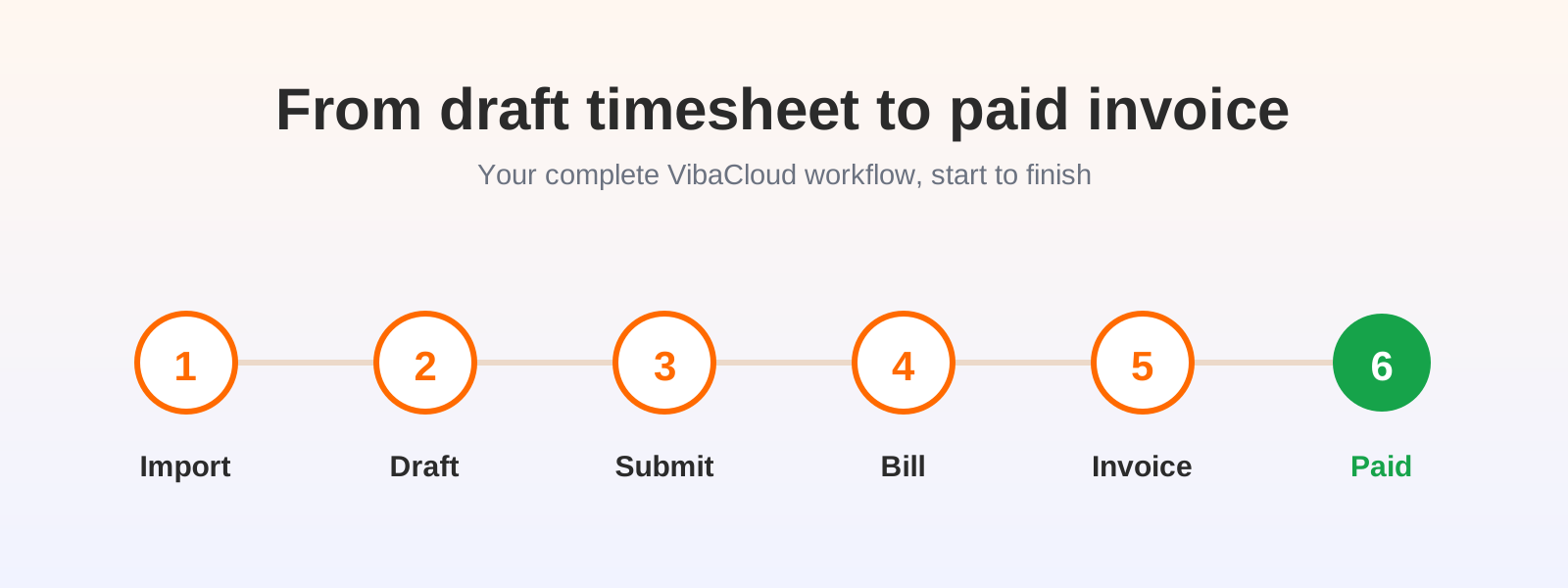
Every invoice moves through a simple life:
- Draft: created but not yet with the client. Nothing is expected of anyone; you can still void it or change the billing email freely.
- Sent: it's with the client and the clock is running. Emailing it from the page marks it Sent automatically; if you send the PDF yourself, click Mark sent so VibaCloud knows.
- Paid: the money arrived and you marked it so. This is the finish line; paid invoices are settled history.
- Void: cancelled, but kept. The number and record stay (no gaps in the sequence), it just stops counting toward what you're owed. Voided by mistake? A Restore button puts it straight back to where it was.
You'll also see Overdue, which looks like a status but isn't stored as one: it's simply a Sent invoice that has gone past its due date without being paid. The moment you mark it Paid, it stops being overdue. Nothing for you to manage.
What the buttons do
- PDF: download the invoice as a tidy PDF. It's rebuilt from the snapshot every time, so it's always identical to what the page shows.
- Email to client: sends that same PDF to the client's billing email. The email goes out under your business name (via VibaCloud), replies come straight to you, and you're copied in for your records. Sending a Draft this way marks it Sent in the same click.
- Mark sent: for when you've sent the invoice yourself and just need VibaCloud to know.
- Mark paid: click when the money lands. It stops any reminders and moves the amount out of your outstanding total.
- Void: cancel the invoice while keeping the numbered record. It asks you to confirm first, and a voided invoice can be restored if you change your mind.
Automatic payment reminders (the polite chaser)
Chasing money is the most awkward email a freelancer writes, so VibaCloud can write it for you. With reminders switched on in Invoice Settings, any Sent invoice that goes unpaid is chased automatically: a polite email on the due date, another 7 days later, and a final one 14 days after the due date. Three at most, then it stops; beyond that, it's a conversation rather than a reminder.
The reminders are deliberately gentle. They're sent during your daytime, never in the days right after you sent the invoice, and each simply states the invoice number, the amount, the due date and "if it's already been paid, please ignore this". The PDF is re-attached so the client doesn't have to hunt for it, replies come to you, and you're copied on every send. The invoice page shows exactly where things stand, for example "Reminder 2 of 3 sent 12 Jul".
You stay in control: reminders are off until you opt in, and each invoice has its own switch, so you can chase most clients automatically while leaving that one delicate relationship alone. Marking the invoice Paid or Void ends the chase instantly.
Frequently asked questions
Why can't I edit the amounts on an invoice?
Because it's a frozen snapshot of your submitted, billable work at the moment you created it. Keeping it fixed means the document your client received always matches your records, even if a rate changes or a timesheet is reopened later. If an invoice is wrong: void it, fix the timesheet, create a fresh one.
Do I have to use the "Email to client" button, or can I send the invoice myself?
Either works. The button sends the PDF for you and marks the invoice Sent in one go, with replies coming to your own email address. Prefer to send it yourself? Download the PDF, email it your way, and click Mark sent so VibaCloud knows the clock is running.
What does the Sent status actually mean?
That the invoice is with your client and awaiting payment. Sent starts the due-date countdown: a Sent invoice past its due date shows as Overdue automatically, and it's the Sent status that makes an invoice eligible for automatic reminders.
When exactly do automatic payment reminders go out?
While a Sent invoice stays unpaid: on the due date, 7 days after, and 14 days after, never more than three in total. They only go out during your daytime, never within a couple of days of you sending the invoice, and they stop the moment the invoice is marked Paid or Void. You're copied on every one.
What does my client see when VibaCloud emails them?
A polite email from your business name (sent via VibaCloud) with the invoice PDF attached. If they reply, it goes straight to your email address, not to us, and you receive a copy of everything sent on your behalf, so there are never any surprises.
What's the difference between voiding an invoice and deleting it?
VibaCloud never deletes invoices, because gaps in a numbered sequence cause bookkeeping questions later. Voiding cancels the invoice while keeping its number and record: it stops counting toward your outstanding total, stops being chased, and remains visible as a clean audit trail. And if you void one by mistake, the Restore button puts it straight back to where it was.
Want the bigger picture of how an invoice comes to exist in the first place? Follow the whole journey in from draft timesheet to paid invoice.