Outlook Time Tracking: The Complete Guide
Outlook has no timer. There's no Start button on a meeting, no project field on an appointment, no hourly rate anywhere in the product, and no view that will tell you how many hours you spent on one client last month. Go and ask on Microsoft's own answers forum and you get the same reply every time: there is no function in Outlook that will add up the hours in your calendar.
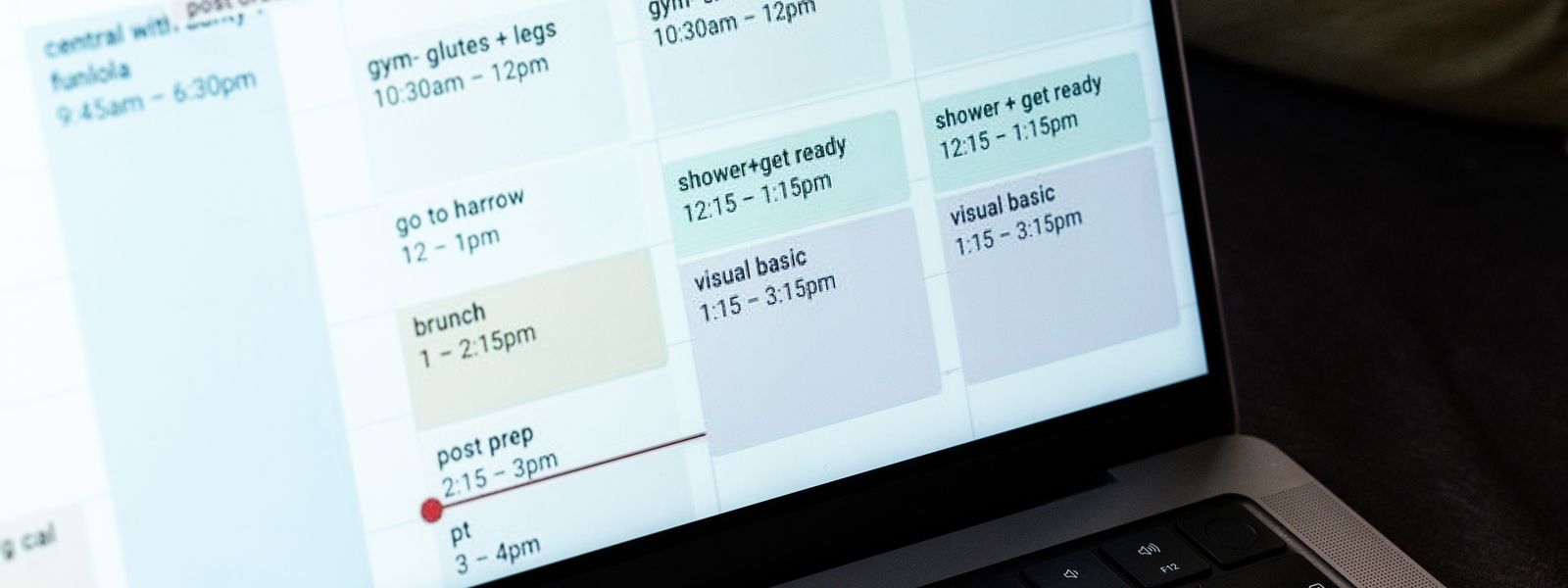
Which is strange, because for a lot of people in professional services the Outlook calendar is the most accurate record of the working week that exists anywhere. It was written down while things were happening rather than reconstructed on a Friday afternoon. Real start times, real end times, the recurring stand-up, the workshop that got moved twice. The only reason it isn't a timesheet is that nothing in it knows which meetings belong to which client, or what an hour of your time is worth.
So the useful question isn't whether Outlook can track time. It's what you have to add to a calendar to get billable hours out of one, and which of the five routes people actually take is worth the trouble.
What Outlook gives you, and what it doesn't
Strip it back and Outlook offers exactly two things a timesheet can use. The first is the event itself: subject, start, end, attendees. The second is color categories, which are the closest thing in the product to a project field, and plenty of people press them into that job. You get a fixed palette to choose from, you can't type in a hex code, and one event can carry several categories at once, so tagging a meeting as both "Henderson" and "Billable" is legal.
Everything else you'd need is absent. Outlook won't total the durations in a category. It has no idea what you charge. It doesn't distinguish billable work from the internal all-hands, it won't produce anything an accounts department would accept, and it has no memory of last week beyond the events still sitting there. The calendar is raw material, and somebody or something has to do the arithmetic on it.
Why Viva Insights isn't the answer
The panel that appears in Outlook and looks like it might be tracking your time is Viva Insights, and it's worth clearing up what it does before you go hunting through its settings. Its time management features are scheduled breaks, learning time, message catch-up, lunch protection, quiet time and a virtual commute. Every one of them is about protecting your calendar rather than reporting on it: you tell it you want half an hour of focus a day, and it goes and books the slot.
Genuinely useful, and no help whatsoever with billing. Nothing in Viva Insights produces a number you can put on an invoice, because it has no concept of a client, a project or a rate. If you landed here hoping Microsoft already ships timesheet reporting inside Microsoft 365, it doesn't.
The five ways people track time in Outlook
1. Retyping it on Friday
Calendar on one screen, timesheet on the other, half an hour of transcription at the end of the week. It's the default because it needs no setup, and it's the most expensive option in the list once you look at what leaks out of it.
Transcription rounds. A meeting booked for 50 minutes becomes "about an hour", the 25-minute call that ran between two others becomes nothing at all, and the ten minutes of prep beforehand was never on the calendar to begin with. Say four short calls a week never make it across. That's 100 minutes, which over a year is just under 87 hours. Bill at £80 and you've quietly donated about £6,900 to clients who would have paid for it.
2. Color categories and a manual tally
One category per client, applied as you go, and on Friday you read the week off the screen by color. This is a real improvement on remembering, and for two or three clients it holds up fine.
It falls over on counting. Outlook will show you the colors but won't sum them, so you're adding up blocks by eye, and eye-arithmetic on a busy week is exactly where the errors live. People do write VBA macros to total appointments per category in classic Outlook, and they work, but you've now got a script to maintain that only runs on one version of one client on one machine.
3. Exporting the calendar to a spreadsheet
Classic Outlook for Windows will export a calendar to CSV: File, then Open & Export, then Import/Export, then "Export to a file", pick CSV and set a date range. Open it in Excel, add a duration column, add a client column, and you have something to bill from.
The catch is that this exporter never made it into the new Outlook for Windows or Outlook on the web. Neither has an Import/Export wizard, and the workaround people land on is publishing the calendar and pulling the generated .ics link, which gets the events out but not into a spreadsheet. Microsoft's own migration plan moves everyone through three stages, opt-in, then opt-out where new Outlook is on by default but you can still switch back, then cutover where you can't. Administrators get at least 12 months of notice before each of the last two, and existing classic installations under perpetual and subscription licensing stay supported until at least 2029. So the CSV route has years left in it. It also now has an end date, which it didn't before.
Then there's the cleanup, which is the same every week. Recurring meetings have to be expanded into their actual occurrences, durations calculated from the start and end columns, canceled and declined events weeded out, and the client column typed by hand because nothing in the file knows who a meeting was for.
4. Building your own with Power Automate
If your organization already lives in the Power Platform, the Office 365 Outlook connector will do the fetching for you. The action you want is "Get calendar view of events (V3)", and the reason it matters is that it expands recurring events into individual occurrences, which is the one thing that catches people out when they reach for "Get events" instead and find their fortnightly review appearing once.
Point it at a date range, write the results to an Excel table or a SharePoint list, and schedule it weekly. Two things to know before you start: it returns a maximum of 256 events per call, so anything busier needs paging with the Skip Count and Top Count parameters, and editing a recurring series can make a calendar trigger fire once per occurrence, which is a lively morning if you weren't expecting it.
This route is worth it when you already have a Power Platform habit and somebody to own the flow. It's a poor one if the flow will be the only thing in the company nobody can explain in a year, and it still leaves you without rates, a billable flag or an invoice.
5. Letting a timesheet tool read the calendar
The last route inverts the job. You connect your Microsoft account once, grant read-only access to the calendar, and the tool pulls each week's events in as draft timesheet lines with the subject, date and duration already filled in. Instead of building a timesheet from an empty grid you're reviewing one that arrives nearly finished, and the only work left is the part a computer genuinely can't do for you: saying which client each meeting belonged to.
That's the shape of it in VibaCloud's calendar import, and in most of the other tools with an Outlook integration, because the labor divides cleanly. Your calendar already knows the timings better than you do, and you're the only one who knows who the work was for.
Making your calendar worth tracking
Whichever route you pick, the output is only as good as the diary feeding it, and a few habits make an enormous difference to how much of your week survives the trip.
- Put the client in the subject line. "Henderson: scope review" beats "Catch-up" for you in three months, and it's what the tools that auto-tag learn from. Consistent naming is what turns a recurring meeting into a project match instead of a decision you make every week.
- Use categories by client, not by mood. The palette is limited, so spend it on the things you bill rather than on urgency levels.
- Block the work that isn't a meeting. Whatever never gets scheduled never gets imported, and for most people the unscheduled half is the writing and the reviewing, which is frequently the better-paid half. Putting it in the calendar protects it and records it in the same move.
- Delete the meetings that didn't happen. A canceled invite you left in place will import as cheerfully as one you attended.
- Keep the personal stuff out, or expect to see it. The dentist appointment imports too. Either it lives in a separate calendar or you delete the line at review time.
From Outlook calendar to submitted timesheet
Here's the whole loop in VibaCloud, from a connected account to a week you can invoice. There's a longer walkthrough in turning your Outlook calendar into a timesheet if you want the detail on each screen.
1. Connect your Microsoft account, read-only
Whichever Microsoft account your work diary sits on, personal Outlook or a Microsoft 365 work tenant, the sign-in happens on Microsoft's side, so your password never reaches us. What we ask for is permission to list your events, and nothing more than that. The connection can be dropped again from Connected calendars without touching anything you've already recorded.
2. Pull in the week
Pick a week and the events show up as a list, each with its day, its timings and its length, in the category colors you gave them in Outlook. Hit the button and every one of them becomes a draft timesheet line.
3. Tag each line to a project
Deciding who a meeting was for is the human part, and it's the part that gets shorter every week. Subjects you've tagged before come back pre-matched to the project you picked last time, so confirming a familiar diary takes longer to describe than to do.
4. Correct the hours, add the missing ones
A meeting's length is whatever the start and end times say, so nothing needs converting from minutes in your head. All-day events have no length to read, so they come in at a full working day, 8 hours unless you set a different figure in your settings. Anything that happened without an invitation, and there's always plenty, goes on as a manual line here.
5. Check the grid and submit
What you end up looking at is a weekly grid: projects down the side, days across the top, rates and billable flags pulled from each project, totals keeping up with you as you type. Submitting locks the week, so the hours and the money attached to them stop moving even if you change a rate later, which is what makes the week safe to build a report or an invoice on.
Choosing a tool: five things to check
Every time tracker with an Outlook logo on its integrations page is telling the truth about the logo and not much else. These are the five questions that separate them.
Does it write to your calendar?
It has no business doing so. A timesheet tool needs to read your week, and a read-only connection is both safer to grant and easier to defend to whoever runs your tenant.
Are billable rates on the plan you'll actually be on?
This is where the free tiers part company with the reason you're tracking time in the first place. Clockify syncs with Outlook and Google Calendar on its free plan, but billable rates start on Basic at $3.99 per user a month billed annually, and free workspaces cap at five users. Toggl Track puts Outlook and Google Calendar integrations on Free as well, and rates on Starter at $9 per user a month annually. Memtime, which tracks in the background rather than from the calendar, has no free plan at all: Basic is €15 a user a month on quarterly billing, €12 annually. Calendar access being free doesn't tell you much when the number you need is behind the paywall. Our roundup of free timesheet apps that still track billable hours goes through this in more detail.
What does it do with an all-day event?
Ignoring them is defensible, valuing them at 24 hours is not, and the honest answer is a configurable working day. It's a small thing that tells you whether anyone building the product has kept a real timesheet.
Is it a live sync or a weekly import?
A live sync sounds better and often behaves worse, because every reschedule, decline and rebooking flows straight into your hours. Importing a week at a time gives you a checkpoint, which is where the canceled meetings and the overruns get caught.
Can you get your data out?
Export in a format a spreadsheet or an accountant can open, and check it isn't the feature that moves to a paid tier the moment you rely on it. Clockify moved exports behind its paid plans in 2026, which is what sent a lot of people looking.
Doing this across a team
Everything above is harder with five people than with one, and not for the reason you'd guess. The technical part scales fine. What doesn't is the chasing.
Calendar-built timesheets help here more than anywhere, because the objection you hear from fee earners is never "I don't want to be tracked", it's "I don't have twenty minutes on Friday to reconstruct my week". Take the reconstruction away and the weekly submission stops being a favor. What you still need around it is a submission that locks the week, an approval step so a manager can send back the line that says "Client call, 4 hours" with no client on it, and some way for people to keep private work private. VibaCloud handles that with team approvals, and untagged time simply never reaches a manager's view.
One thing to settle before you roll anything out: whose calendars get connected, and by whom. Each person connects their own account and grants their own read-only access. Nobody should be reading a colleague's calendar to fill in a colleague's timesheet.
If your week lives in Google Calendar
All of it applies, with a different sign-in. Google's export gives you an .ics or a Takeout archive rather than a CSV, and the do-it-yourself route runs through Apps Script instead of Power Automate, but the import loop is the same one. We've written the mirror-image guide in turning your Google Calendar into a timesheet, and if your work is split across both, the deciding factor is simply which calendar people actually accept invitations in.
Key takeaways
- Outlook has no built-in time tracking. Color categories are the nearest thing to a project field, and nothing in the product totals hours, stores a rate or knows what billable means.
- Viva Insights protects time rather than reporting on it. Scheduled breaks and focus time are not a timesheet.
- CSV export lives in classic Outlook only. New Outlook and Outlook on the web have no Import/Export wizard, and classic is supported until at least 2029 rather than forever.
- In Power Automate, use "Get calendar view of events (V3)" so recurring meetings expand into occurrences, and page past the 256-event limit.
- Calendar import turns writing a timesheet into reviewing one. Tag, adjust, add what wasn't scheduled, submit.
- Check which plan billable rates sit on before you commit to a tool. Free calendar sync with paid rates is the standard shape of the market.
Frequently asked questions
Does Outlook have built-in time tracking?
No. Outlook records events with accurate start and end times, and color categories let you label them, but there is no timer, no project or rate field, and no view that totals the hours in your calendar. Anything resembling a timesheet comes from an add-in, an export or a tool that reads the calendar for you.
Is Viva Insights a time tracker?
Not in the billing sense. Its time management features are scheduled breaks, learning time, message catch-up, lunch protection, quiet time and a virtual commute, all of which book time in your calendar to protect it. None of them knows about clients, projects or rates, so nothing it produces can be invoiced.
How do I export my Outlook calendar to Excel?
Only classic Outlook for Windows can do it directly: File, then Open & Export, then Import/Export, then "Export to a file", then CSV, choosing the calendar and a date range on the way through. There is no Import/Export wizard in the new Outlook for Windows or in Outlook on the web, so people there fall back on publishing the calendar and taking the .ics link, which is not a spreadsheet. Whatever route you take, the file arrives without durations, without recurring meetings expanded and without any idea which client each event belonged to.
Can Power Automate build a timesheet from my calendar?
It can build the raw data. The Office 365 Outlook connector's "Get calendar view of events (V3)" action returns each occurrence of a recurring meeting rather than the pattern, which is what you want for a timesheet, and you can write the results to Excel or a SharePoint list on a weekly schedule. It returns up to 256 events per call, so busy calendars need paging. What it won't give you is projects, billable flags, rates or an invoice.
How are meeting durations turned into billable hours?
The length of the event is the length of the entry, taken from the times already recorded rather than estimated, so a 45-minute call bills as 0.75 hours. The one event type with no length to read is the all-day event, which in VibaCloud comes in at a full working day of 8 hours until you change that number in settings. What makes an hour billable, and what it is worth, comes from the project you attach the line to.
Is it safe to connect Outlook to a time tracking tool?
It can be, and the consent screen is where you find out. Authentication happens on Microsoft's side, so no password is handed over, and the permission a timesheet tool needs is the read-only one: enough to list your events, not enough to alter your diary. Read what is actually being requested before you approve it, and check that disconnecting later leaves the timesheets you have already built alone.